 APKBees
CapCut
by ByteDance Pte. Ltd.
Loading...
Share App
Share CapCut with friends
https://apkbees.com/apps/capcut
SHARE ON
CapCut Video Editor The Complete Guide 2026
The mobile app market is packed with video editors, and new options appear every single month. With so many choices ranging from simple trimmers to complex professional suites, finding a tool that actually balances power with accessibility is a real challenge. Many apps promise a premium experience only to hide essential features behind a subscription or clutter final export with watermarks. CapCut stands out in this saturated environment by keeping its core toolkit free and accessible for everyone.
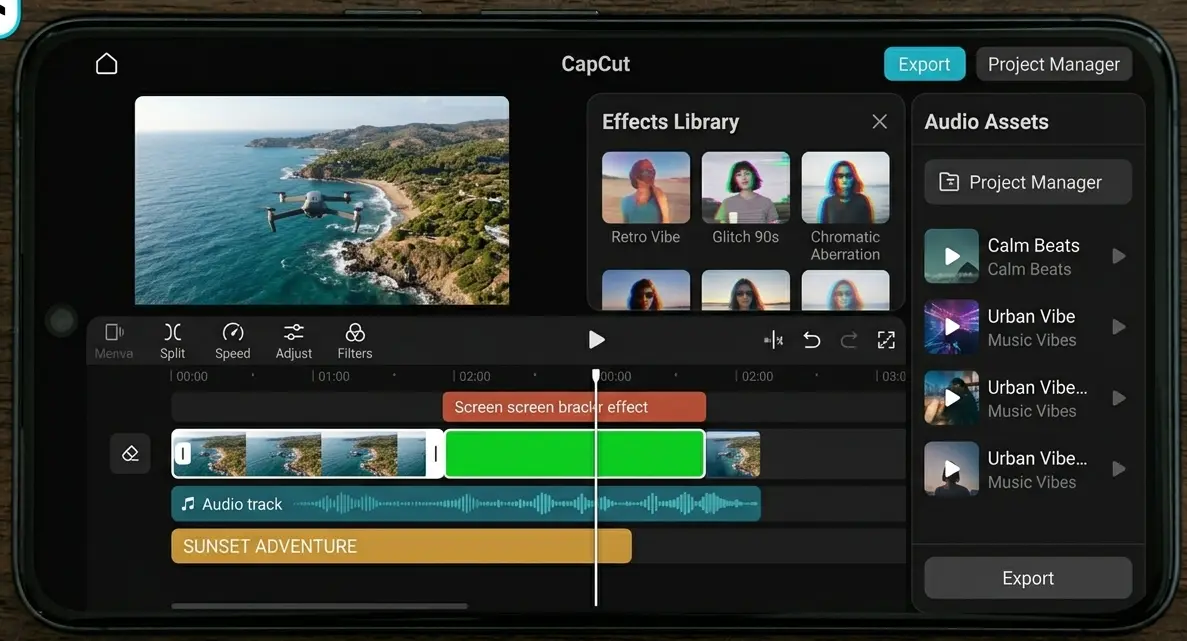
If you have been searching for a reliable editor among the endless sea of apps, you might have noticed how often this one shows up in conversations. This guide looks at what CapCut actually offers for mobile users in 2026, how the free version compares to the Pro tier, and some practical editing habits that help you get professional results regardless of the tools used.
What Is CapCut?
CapCut is an all in one video editing app developed by ByteDance, the same company behind TikTok. It is designed to make professional quality editing accessible to everyone, whether you are a student, a content creator, or a small business owner. The app provides a full suite of tools for trimming, adding effects, and polishing videos without needing to master complicated desktop software.
You can easily get the app on any device. iOS users can download it directly from the App Store. Android users have two main options, as they can grab it from the Google Play Store or download the official CapCut apk file directly from the official CapCut website. No matter which method is choosed, you get the exact same powerful editing experience.
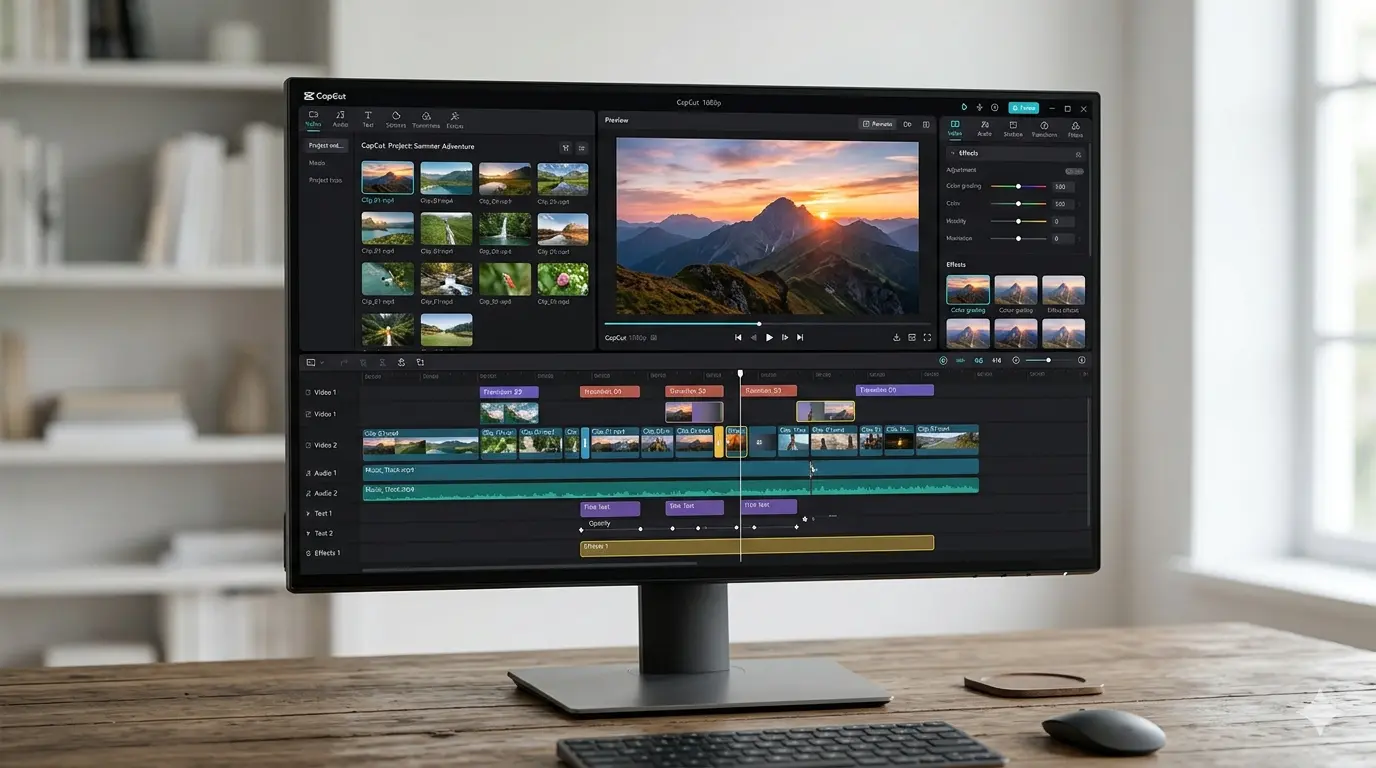
What's Actually Free in CapCut
CapCut comes with many free features that other video editing apps often lock behind a paywall. It does not act like a limited trial or a teaser. Instead, it provides a complete toolkit that is ready to use the moment you install it.
Multi track timeline editing: You can stack video, audio, text, and effects across many layers without hitting artificial limits or project restrictions.
Keyframe animation: Professional motion control is available for free. You can animate position, scale, opacity, and filters over time, which is a feature usually found only in paid software.
Chroma key: Swapping backgrounds is simple. This tool allows for green screen effects without the need for expensive studio lighting or equipment.
Speed ramping: Creating smooth motion is easy. Both slow motion and fast motion effects are built in, which helps transitions feel natural rather than sudden or jarring.
Filters and effects library: A large collection of visual styles is included. This covers everything from cinematic grading to fun overlays that fit current social media trends.
Basic AI voiceover: Text to speech is available for free. This is a helpful option when recording original audio is not possible or practical.
1080p export with no CapCut watermark: The finished video remains clean. There is no forced watermark stamped on the footage, and the quality is clear at 1080p.
Some advanced AI tools, such as auto edit, background removal, and auto captions, have monthly limits. These limits reset each month and are generous enough for most people editing on a regular basis. Casual creators will rarely notice these caps uisng, as the free plan covers almost all daily editing needs.
CapCut Free vs CapCut Pro
Feature | CapCut Free | CapCut Pro |
|---|---|---|
Price | $0 | Varies by region and purchase channel |
Export Resolution | Up to 1080p | 4K at up to 60 FPS with HDR support |
Editing Toolkit | Full timeline editor across mobile, desktop, and web with multi-track editing, chroma key, speed ramping, and trim/split tools | Same full toolkit plus advanced extras |
Watermark | No watermark on standard exports and free templates | No watermark on any content including premium templates |
AI Tools | Limited monthly usage including a handful of auto-edits, auto captions, and AI effects generations | Full AI toolkit including camera tracking, vocal isolation, speaker identification captions, and AI voice effects |
Cloud Storage | Basic and limited | 100GB or more for cross device project syncing |
Templates | Free template library included | Expanded library refreshed more frequently |
Commercial License | Limited commercial rights | Full commercial licensing for templates, music, and effects |
Free Trial | Not applicable | Short trial period with full feature access |
Best For | Short form content creators posting to TikTok, Instagram, and YouTube Shorts | Daily creators, heavy AI tool users, anyone needing 4K export or more storage |
How to Download CapCut
Getting started with the app is simple regardless of the device you are using. Follow these steps based on your platform
Android
Play Store: Open the Google Play Store on mobile phone, search for CapCut, and tap Install.
Manual APK: If you do not have Play Store access, download the official CapCut apk file directly from their website and install it manually. Click the Download Apk below.
iOS
Open the Apple App Store on iPhone or iPad, search for CapCut, and tap the download icon to install it.
PC (Windows and Mac)
Visit the official website using desktop browser. Download the installer specifically for your operating system and follow the on-screen prompts to complete the setup.
Getting Started
Once you have the app installed, open it to get started. You can create an account to save progress, or continue as a guest to jump straight into first project. From the main menu, start a new project and import photos or videos from device. You can then use the timeline at the bottom of screen to trim clips, add effects, and arrange your video.
CapCut runs smoothly on most modern devices and does not require high end hardware to function. Even on older budget phones or standard laptops, you should be able to handle basic editing projects without experiencing significant lag.
Getting Comfortable With the Interface
The interface can feel a little dense on first open. The timeline sits along the bottom, the preview window takes up the middle of the screen, and a row of editing tools runs underneath the preview. After a few cuts and a couple of effects added, the layout starts making a lot more sense.
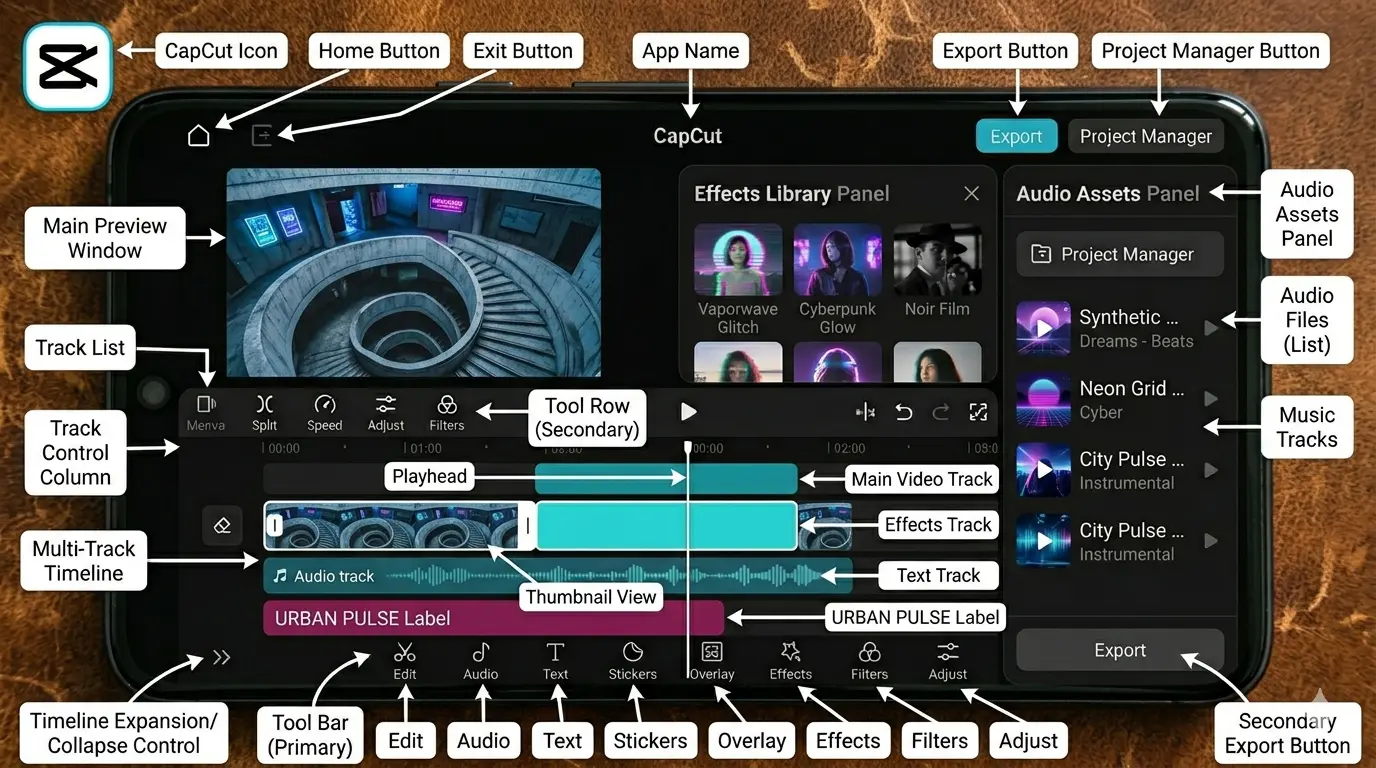
A good first project is something short, ten to fifteen seconds of footage that's easy to experiment on. Trimming a clip, adding a text overlay, then layering in a transition between two clips covers maybe seventy percent of what gets used in regular editing, and it builds a feel for how the tools respond before committing to a longer project.
Tips to Edit Better in CapCut
Getting comfortable with CapCut's tools takes a bit of practice, but a few habits make a noticeable difference in how polished the final video looks.
Cut on movement, not silence. Transitions feel smoother when they land during motion in the clip rather than during a pause, since the eye is already tracking something when the cut happens.
Use keyframes for subtle zooms. A slow, gentle zoom on a static shot adds energy without looking forced or overly dramatic.
Keep text on screen just long enough to read twice. Captions that vanish too fast frustrate viewers trying to keep up, while ones that linger too long feel sluggish and slow down the pacing of the video.
Match audio levels before adding effects. Balancing background music against voice first avoids constant readjustment later once other elements are already in place.
Export a short test clip before committing to a long render. A ten second export reveals quality or pacing issues before rendering an entire ten minute video.
Save templates for formats that repeat often. Posting the same style of content regularly makes a reusable template cut editing time down significantly over weeks and months of consistent posting.
Use AI auto captions sparingly on the free plan. Since auto captions are capped monthly, save that feature for videos where typing captions manually would take noticeably longer.
Is CapCut Safe to Download
Yes, CapCut is safe to download get it from official channels.
Official Sources
Downloading the app from the Google Play Store, the Apple App Store, or the official CapCut website is completely fine. These platforms perform standard security reviews to ensure the software is safe for your device.
Unofficial Sources
Avoid downloading the app from unfamiliar forums or third party links. Modified or cracked versions of popular apps are common carriers for malware, which can compromise your phone's security. Stick to verified sources to keep device and data secure.
Frequently Asked Questions
Is the video editor free to use?
Yes. It comes with a full editing toolkit, no forced watermark, and 1080p export. Paid plans exist for additional features like 4K export and expanded AI tools, but they are entirely optional.
Do I need the Pro plan to remove the watermark?
No. The free version does not add a watermark to exports.
Can the APK be downloaded instead of using the Play Store?
Yes. Downloading the APK works the same way and gives the same app, which is useful when Play Store access isn't available on a device.
Does CapCut work well on older Android phones?
Yes. It runs smoothly on most Android devices released in recent years, though very old or low spec phones may experience some lag with heavier projects involving multiple layers or effects.
What does the Pro plan actually add?
Pro adds 4K export, expanded cloud storage, unlimited use of AI tools, and access to premium templates. Pricing varies by region and the platform used to subscribe.
Is it safe to download?
Yes, as long as it comes from the official Play Store or a trusted source. Modified or cracked versions are worth avoiding, since they often carry real security risks.
Can editing happen on a desktop instead of a phone?
Yes. CapCut is also available for Windows and Mac, and projects can sync across devices when signed into an account.
CapCut is developed by ByteDance Pte. Ltd. This article is for informational purposes only. Pricing and features are subject to change, so checking CapCut's official app or website for the most current details is recommended before making any decisions.
Images
( Tap any image to open it )
Features
Trim, split, cut, and merge video clips with no restrictions
Smooth slow-motion free
Auto Captions / Speech-to-text subtitles
Background removal - works without any subscription
Keyframe animation available for all settings at no cost
Video stabilization - fix shaky footage without paying
Motion tracking - track objects in your video for free
Hundreds of filters, transitions, and effects - all unlocked
Export in 1080p without watermark - absolutely free
No watermark on exported videos
Lightweight at only 117.49 MB - runs smooth on older phones too
Additional Info
Version
N/A
Size
118 MB
Category
Video
Requires Android
Android 5+
Info last Updated
19 June 2026
Price
Free
Developer
ByteDance Pte. Ltd.
Votes
4.5 / 5 ( 42 )